

Amazon Japan (amazon.co.jp) is Japan’s largest online marketplace, with electronics, fashion, kitchenware, snacks and many Japan-exclusive items. With a Buy&Ship Japan warehouse address, you can shop on Amazon JP and have your parcels forwarded to Malaysia. This guide takes you through every step, from signing up to declaring your parcel.
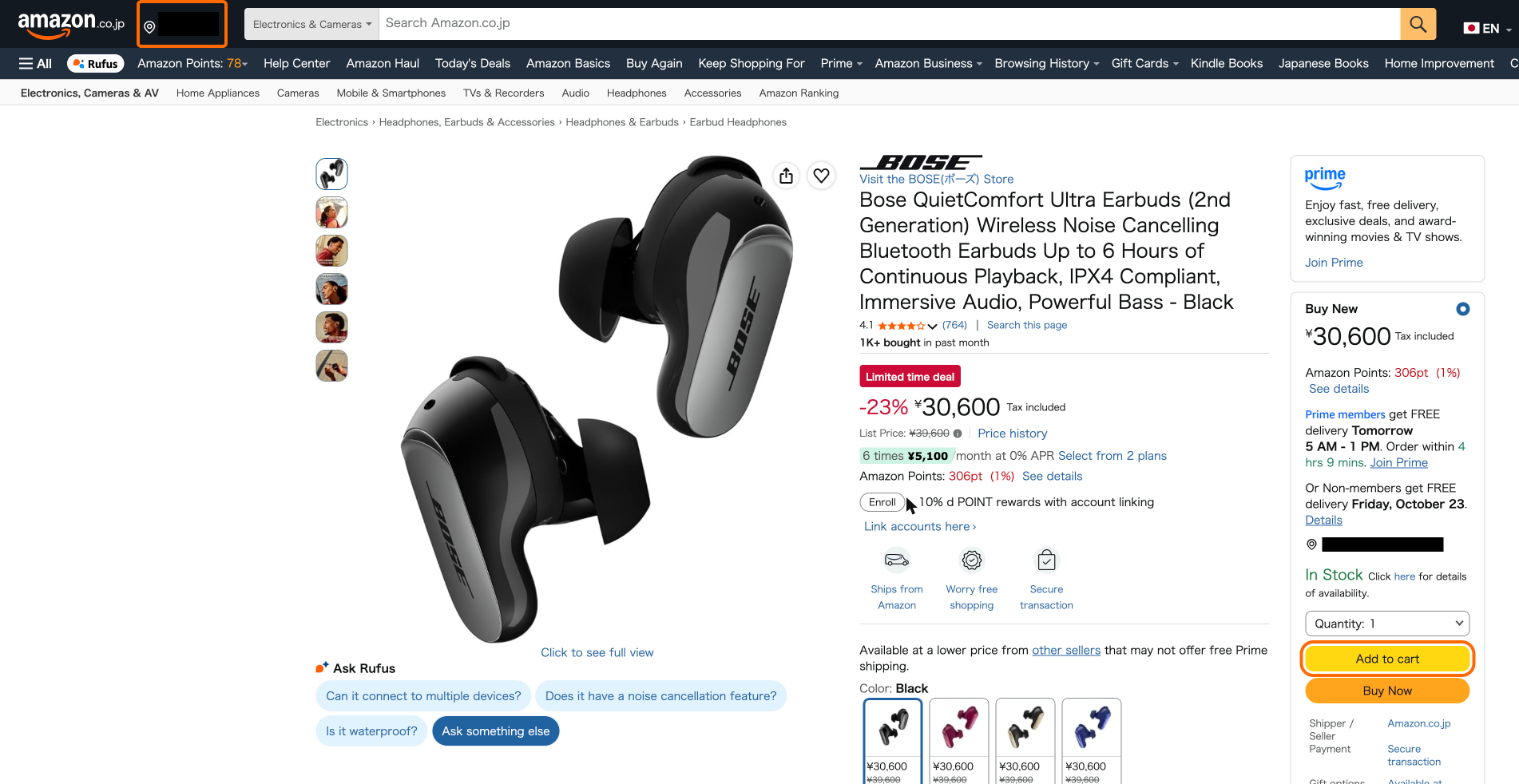
💡Remember to enter a Japanese warehouse address in the top left corner of the Amazon webpage to view more local exclusive products and prices!
Table of Contents
→ Amazon JP Shopping Guide
→ Buy&Ship Parcel Declaration Guide
Amazon JP Shopping Guide
Step 1
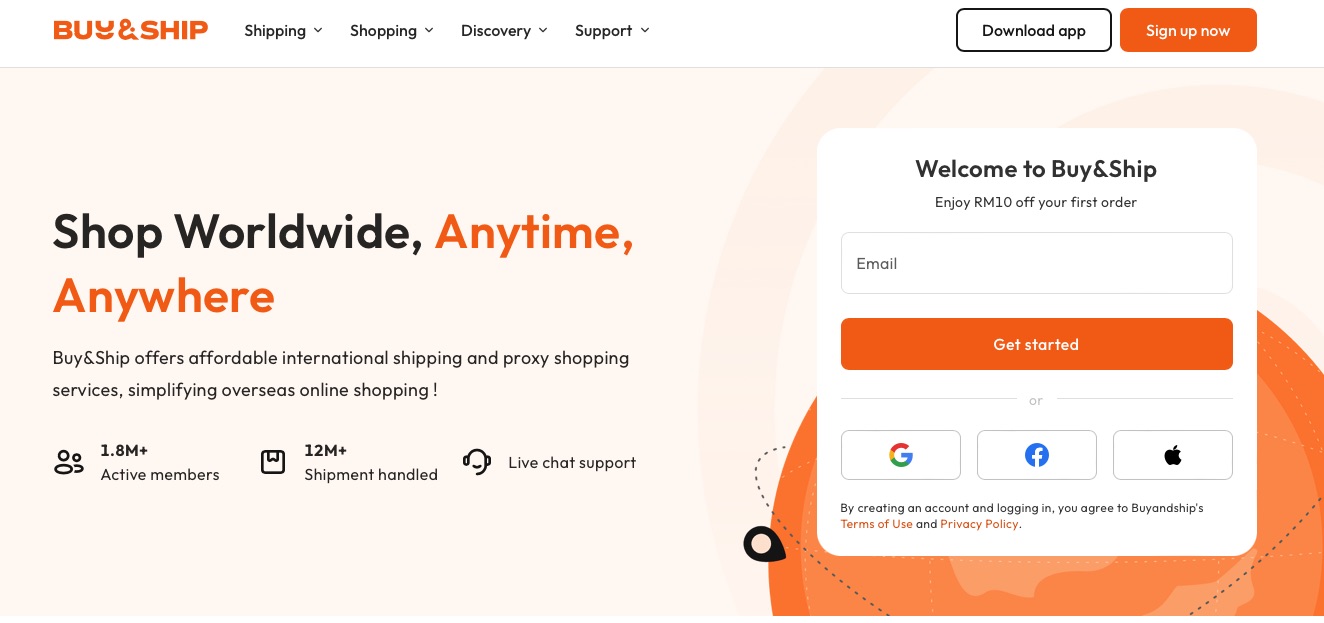
Go to the Buy&Ship website and sign up with your email, or continue with Google, Facebook or Apple.
Step 2
Go to Amazon JP and click “Deliver to” at the top left. Enter the postal code of the Japan warehouse (you can find it on the Warehouse addresses page), then pick the items you like and add them to your cart.
Step 3
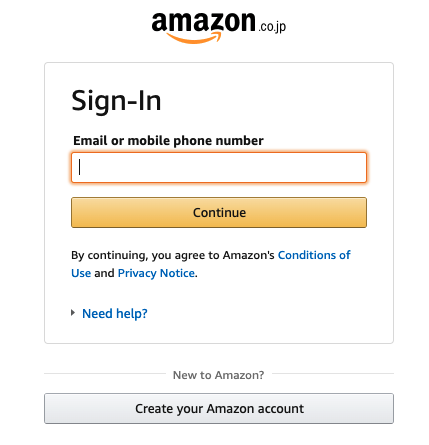
Sign in to your Amazon JP account, or create one if you don’t have one yet.
Step 4
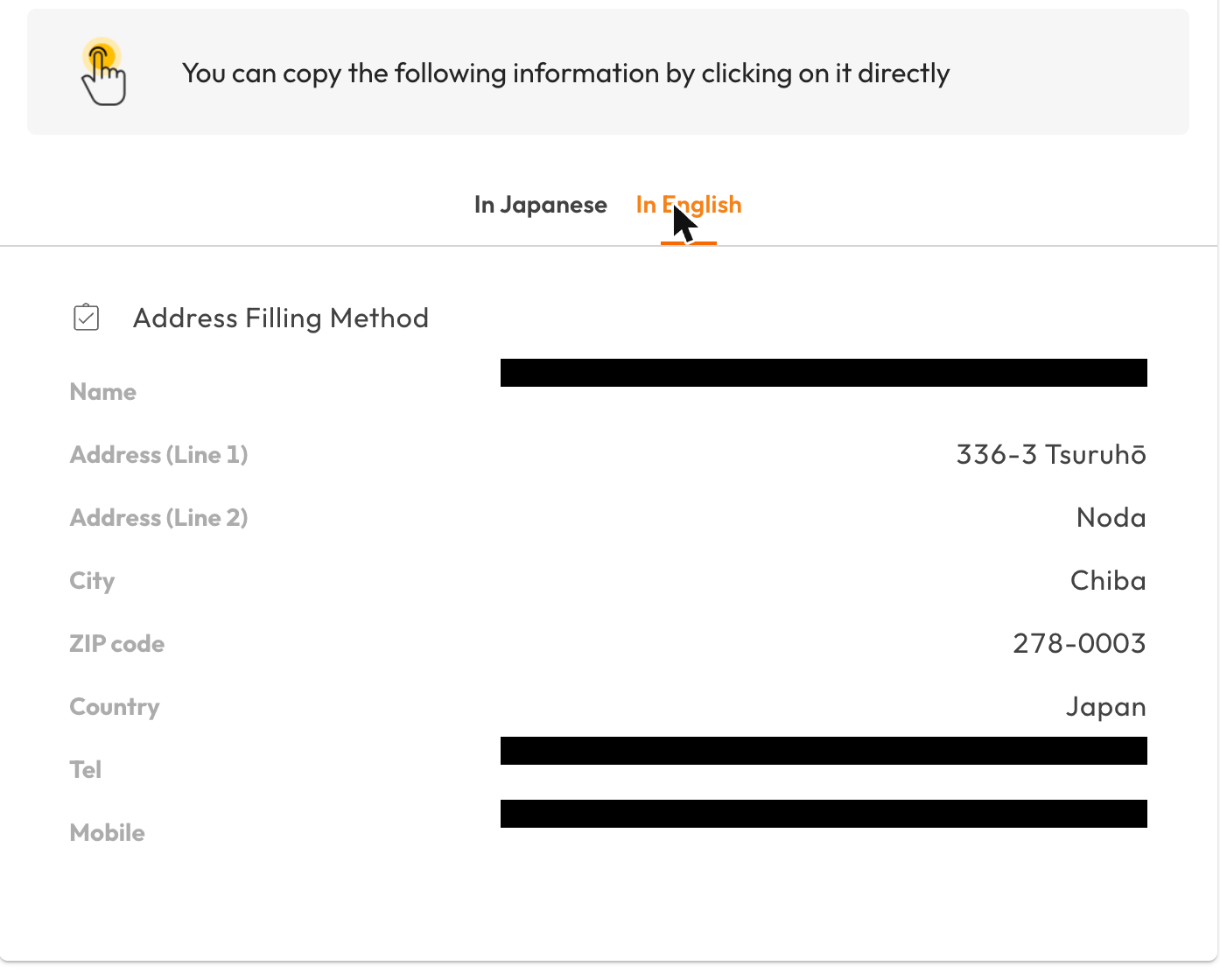
Open Warehouse addresses in your Buy&Ship Member Centre, choose Japan, and copy the details into the shipping address fields on Amazon. Your name is followed by your Buy&Ship member code, so copy it exactly as shown.
Step 5
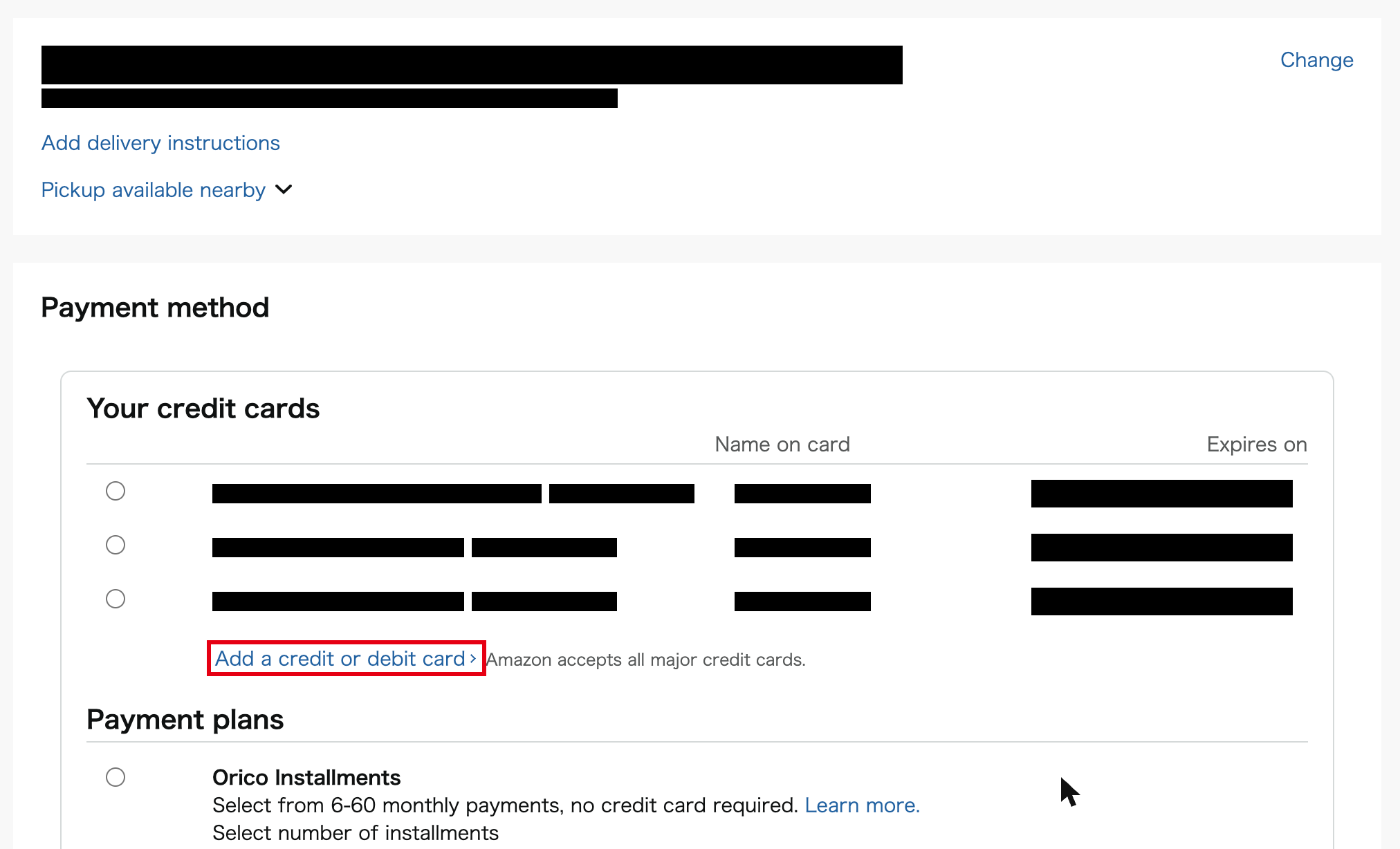
On the payment page, click “Add a credit or debit card” and enter your card details to pay.
Step 6
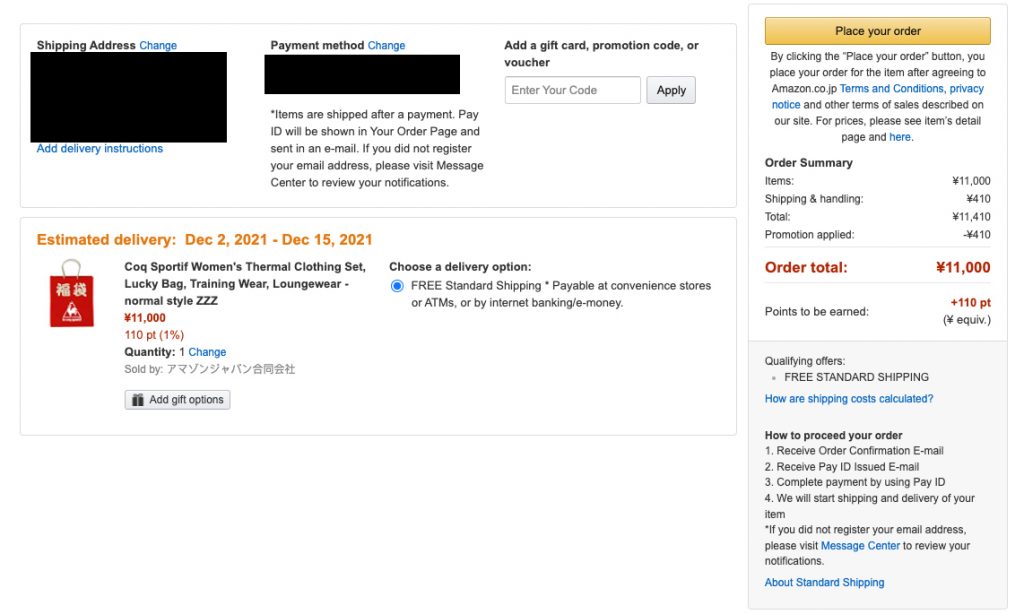
Review your order, then click “Place your order”. Once the seller ships it, remember to declare your parcel on Buy&Ship — see the declaration guide below.
Buy&Ship Parcel Declaration Guide
Step 1
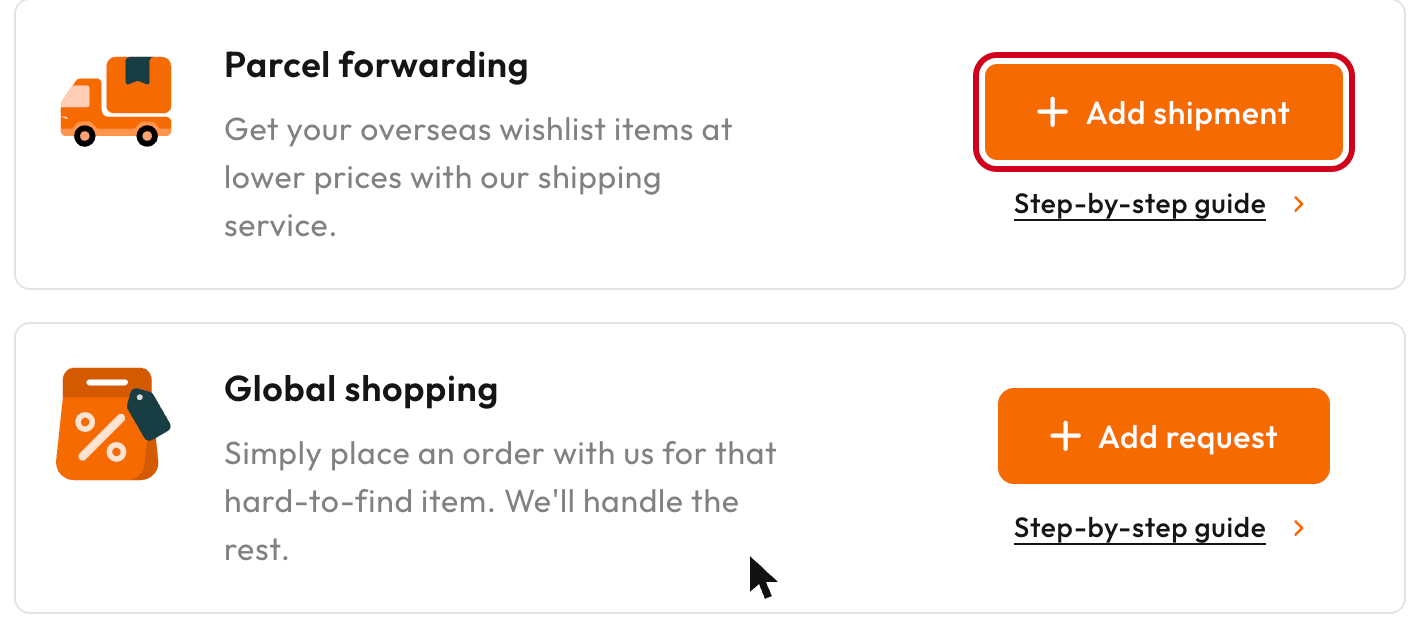
Log in to your Buy&Ship Member Centre and click “Add shipment”.
Step 2
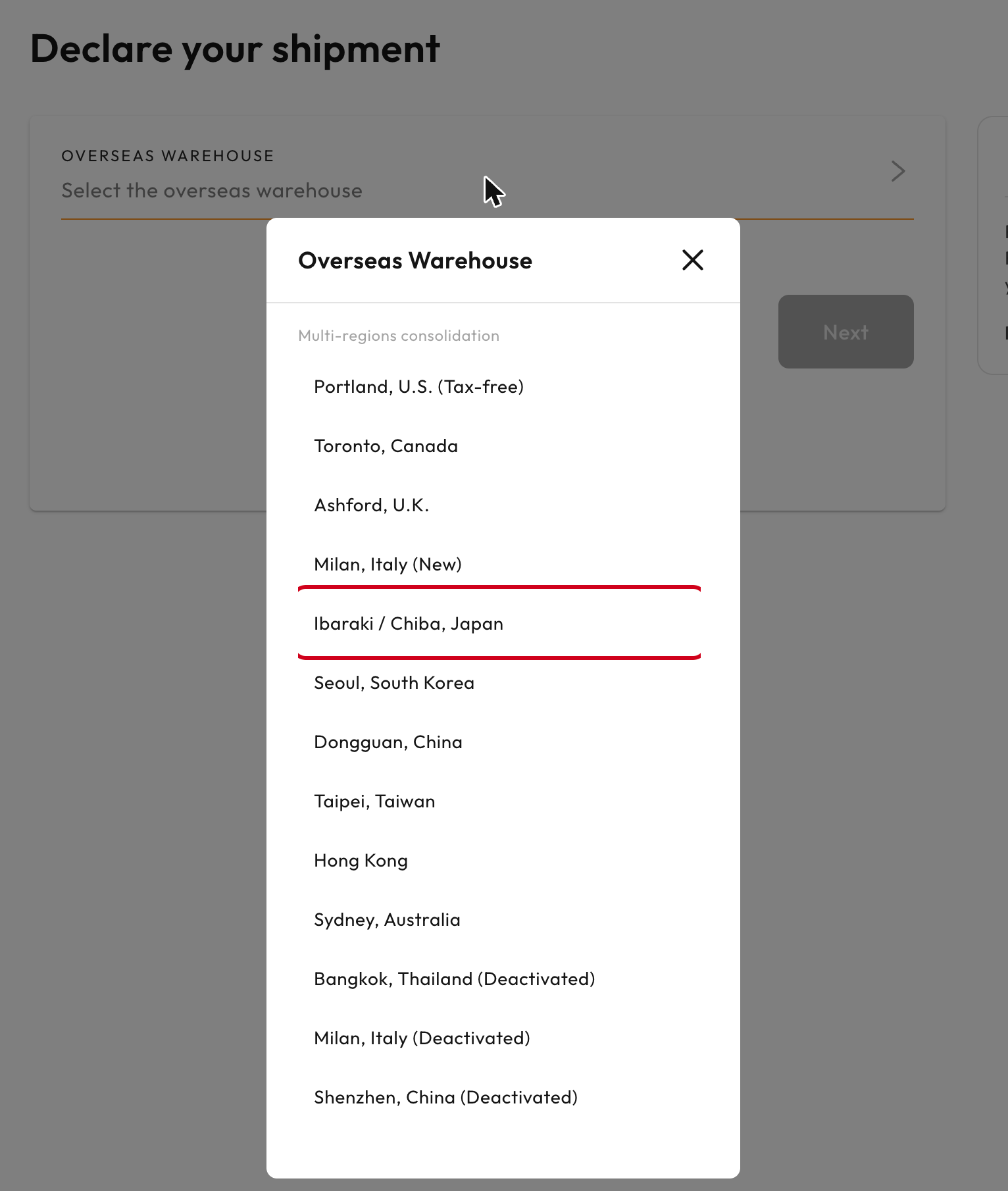
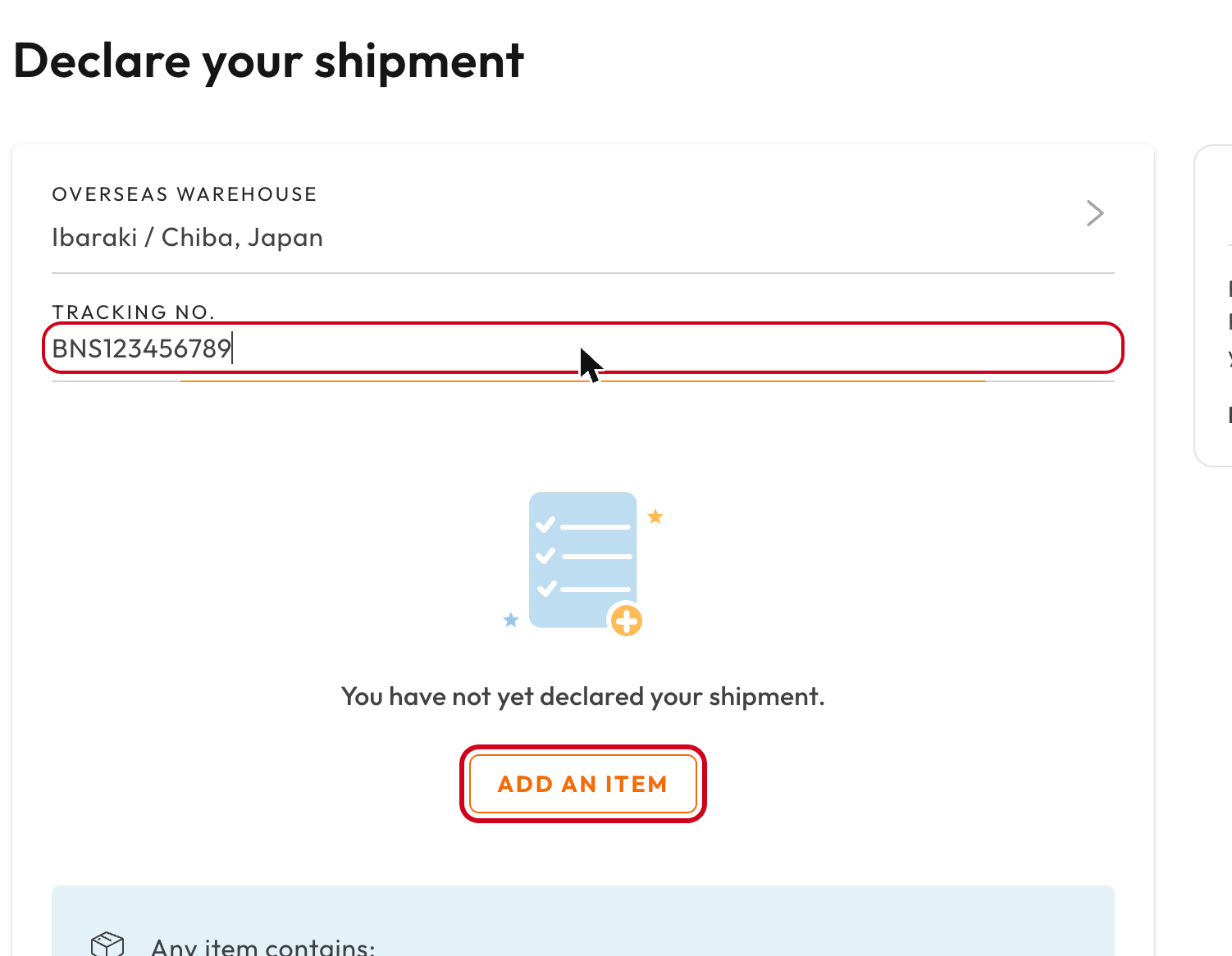
Select the overseas warehouse your parcel is heading to. For Amazon JP orders, choose “Ibaraki / Chiba, Japan”.
Step 3
Copy and paste the tracking number from the seller’s shipping email into “Tracking No.”, then click “Add an item” to enter your purchase details.
Step 4
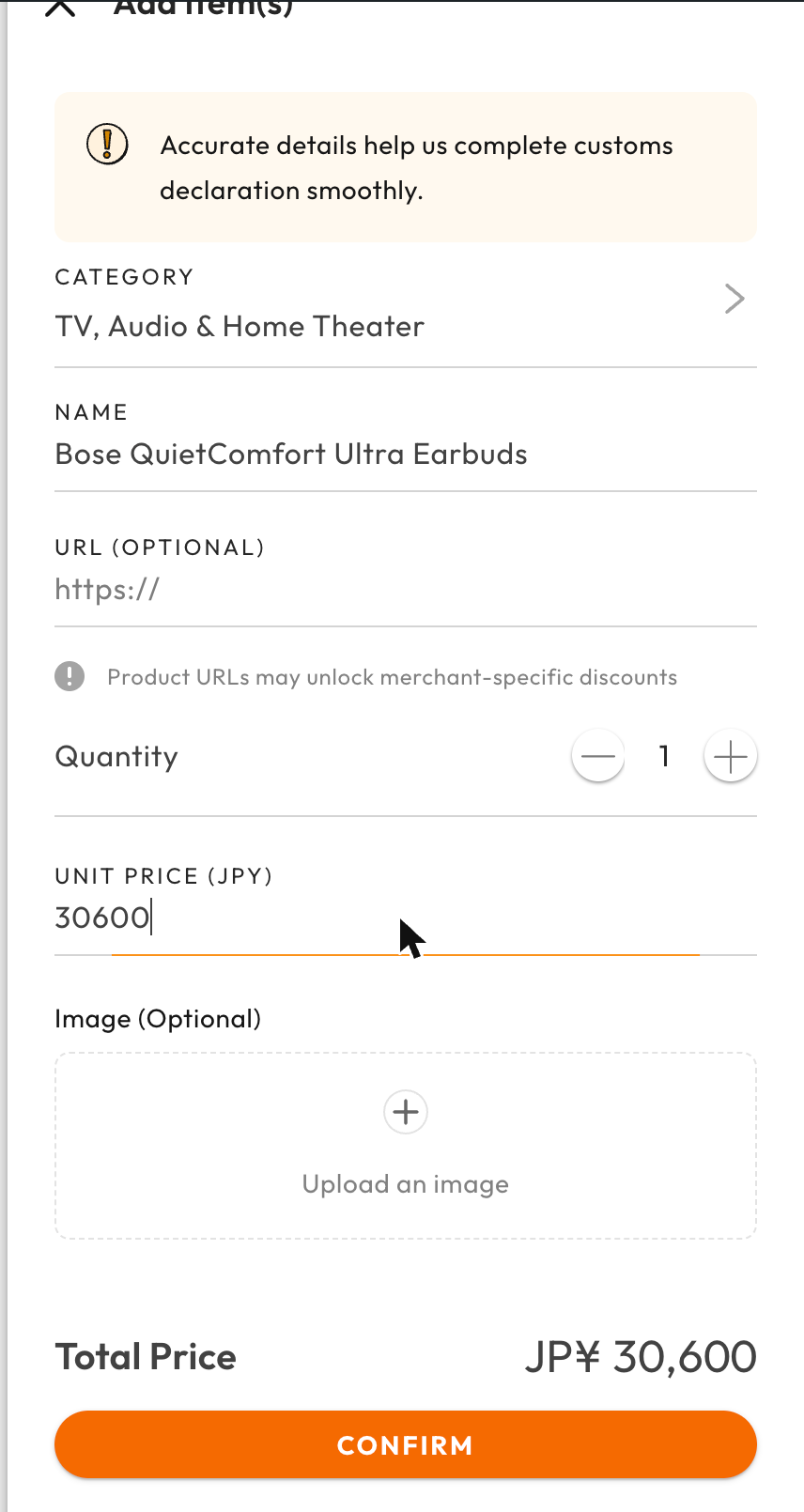
Choose a category, then enter the item name, quantity and unit price (JPY) and click “Confirm”.
The item URL is optional; adding it may unlock merchant-specific discounts.
Step 5
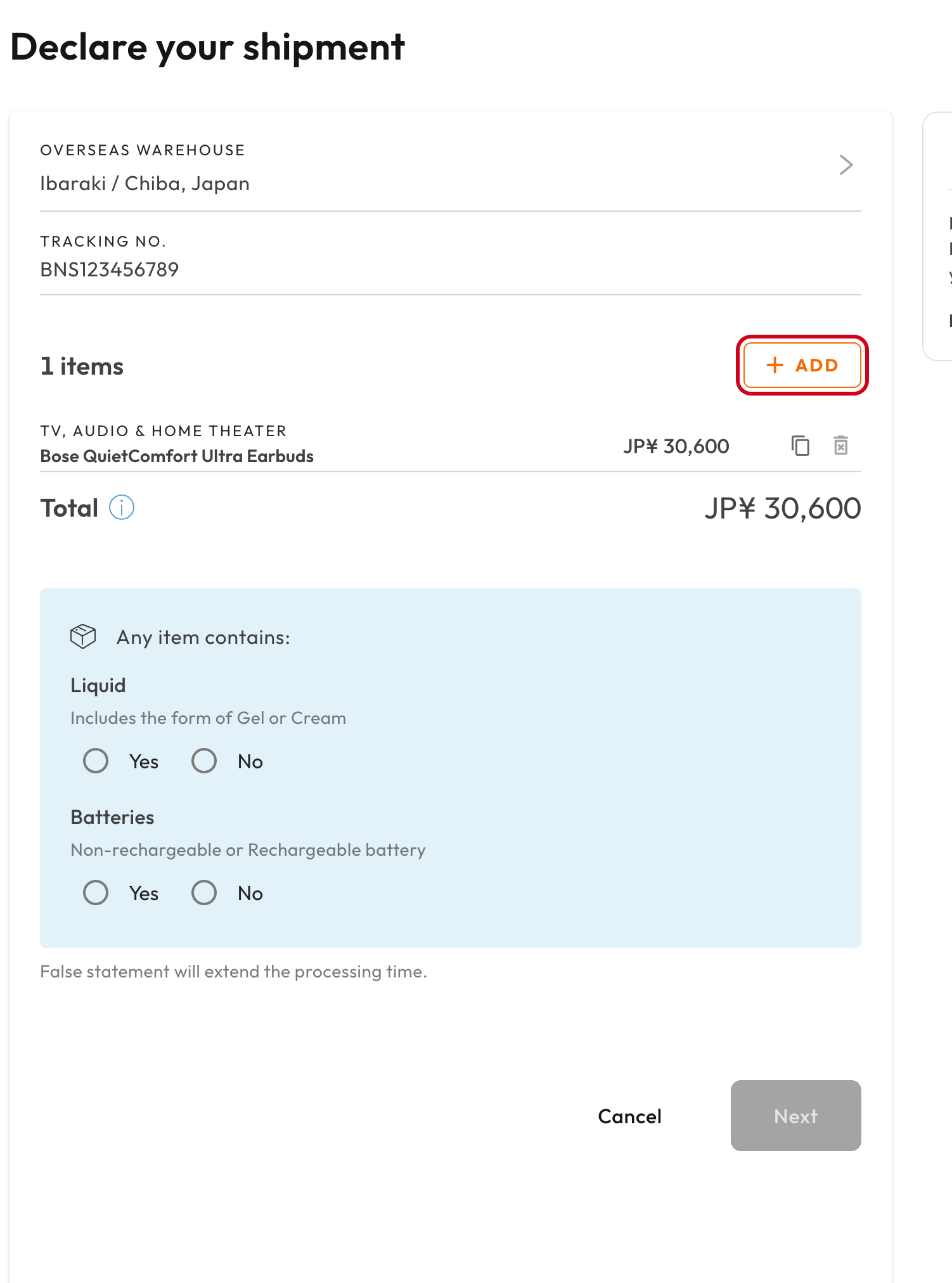
If your order has more than one item, click “+ Add” to enter the rest.
Step 6
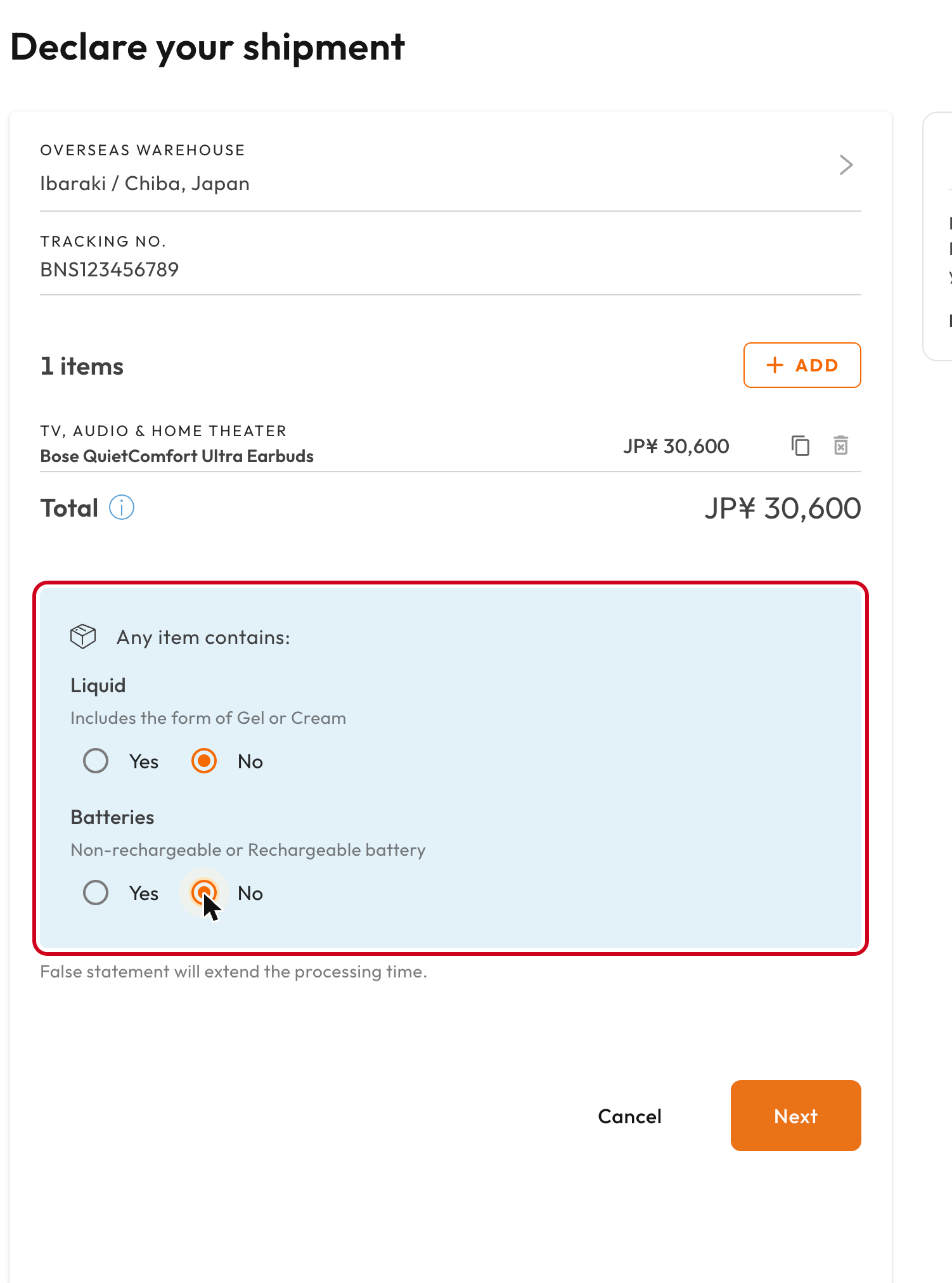
Tell us whether any item contains liquid (including gel or cream) or batteries, then click “Next”.
A false statement will extend the processing time.
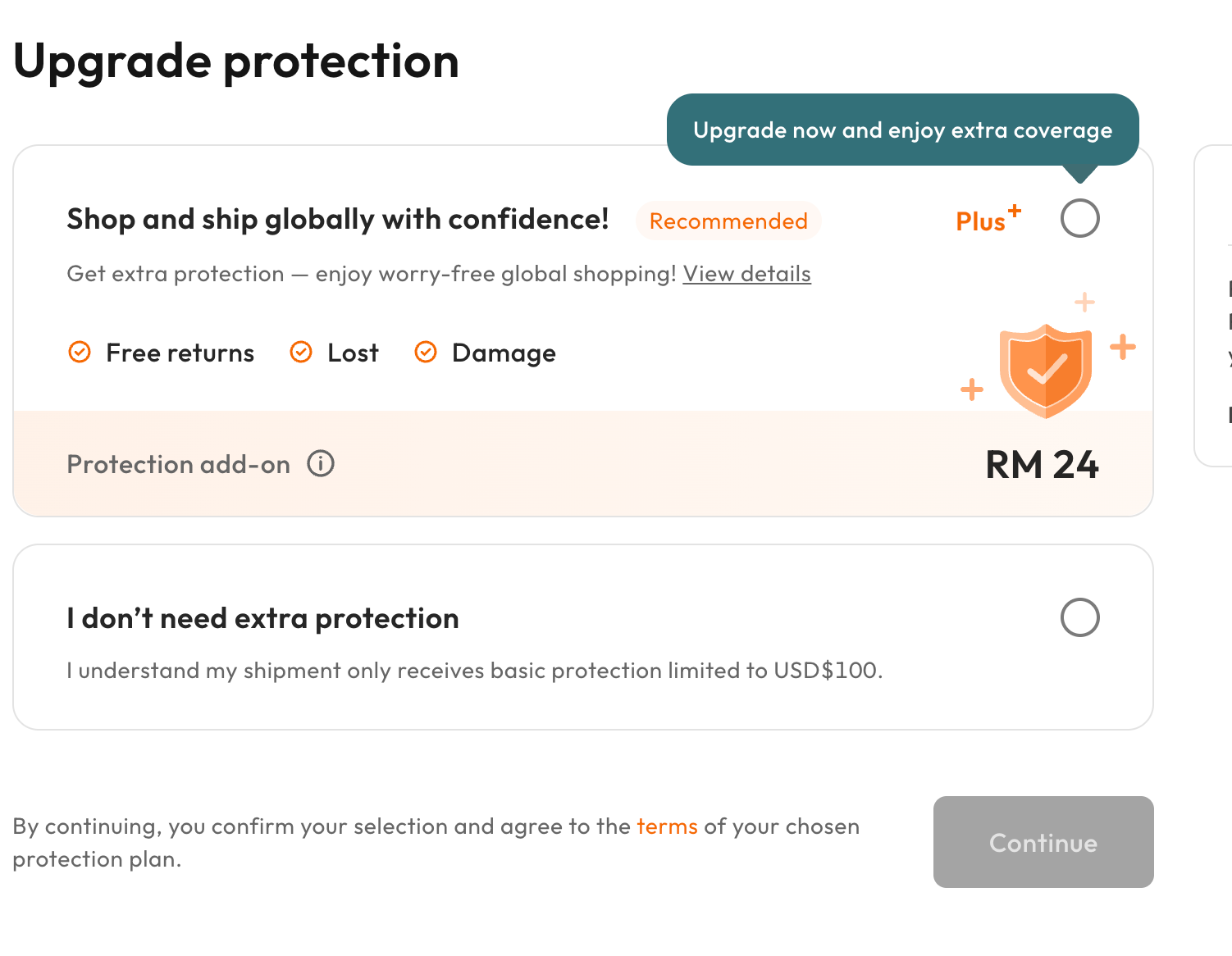
Step 7
Choose whether to add Buy&Ship Plus extra protection, then click “Continue”.
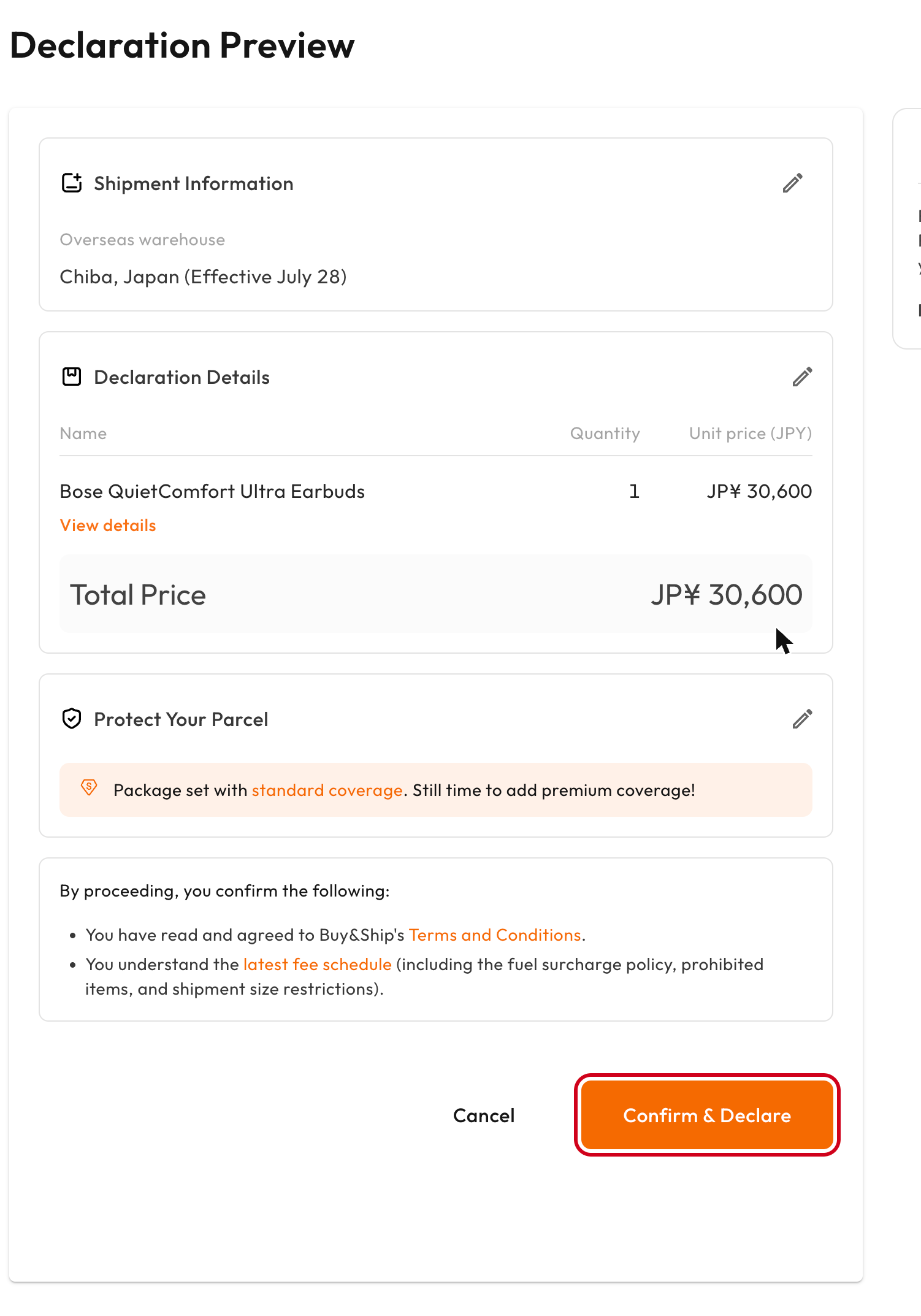
Step 8
Check your declaration on the preview page, then click “Confirm & Declare”.
Once declared, just wait for your parcel to arrive at the overseas warehouse.