

Coach Outlet Canada has an online store where you can buy handbags, wallets and accessories directly. This guide uses the Nolita 19 bag as an example to show how to place an order on the Canadian site, ship it to the Buy&Ship Canada warehouse and forward it to Malaysia.
If you would rather not check out yourself, you can also use Buy&Ship proxy shopping.
TL;DR | Key Points
・How to buy: Check out on the Coach Outlet Canada site with the Buy&Ship Canada warehouse as the delivery address. Once the parcel arrives, declare it and forward it to Malaysia.
・What you need: A Buy&Ship account and the Canada warehouse details on the Overseas Warehouse Address page in your account.
・Check your address: The Coach checkout may reformat the address automatically. Before you submit, make sure the second address line (your member code) is still there.
・Prefer not to check out yourself: Use Buy&Ship proxy shopping.
Contents (click to jump)
→ Before You Shop
→ Method 1: Shop on Coach Outlet Canada and Forward to Malaysia (6 Steps)
→ Method 2: Coach Outlet Proxy Shopping (4 Steps)
→ FAQ
Before You Shop
- Sign up for a Buy&Ship account.
- Find the Canada warehouse details on the Overseas Warehouse Address page in your account: First Name, Last Name, Address (Line 1), Address (Line 2), City, Province, Postal Code and Tel.
- Before you buy, check the prohibited and restricted items list and the latest shipping rates.
Method 1: Shop on Coach Outlet Canada and Forward to Malaysia (6 Steps)
Step 2
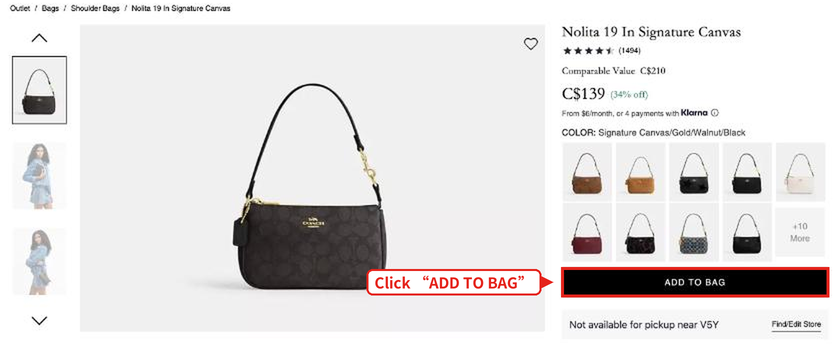
Go to the Coach Outlet Canada site, choose your bag and colour, then click “ADD TO BAG”.
Styles, prices, colours and stock change from time to time. Always refer to the Coach site.
Step 3
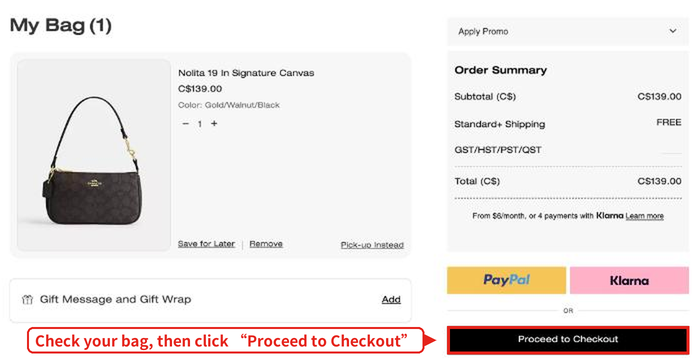
After adding the bag, click “View shopping bag” (or the bag icon at the top right) to open your bag. Check the item, colour and quantity, then click “Proceed to Checkout”.
Step 4
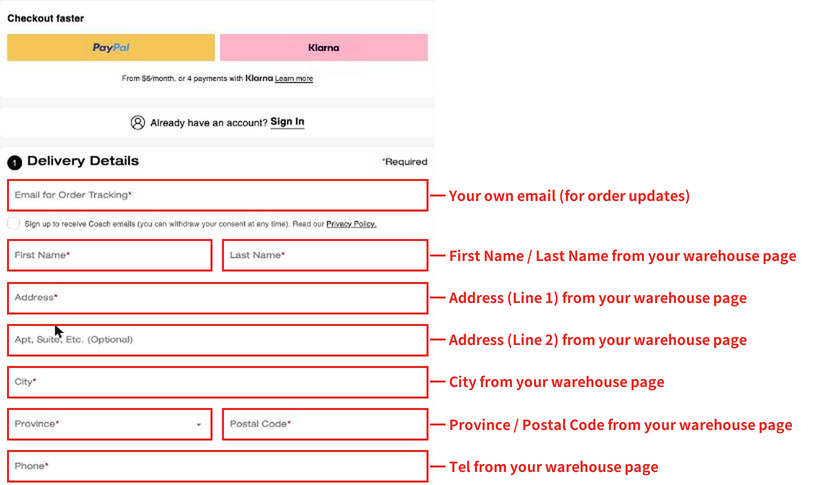
Fill in your delivery details under “Delivery Details”. Click “Enter Address Manually” first, then enter the Buy&Ship Canada warehouse details as shown in the screenshot.
Use an email address you check regularly. Order updates and shipping notifications are sent there.
Note: The Coach address field may reformat your address, for example by moving the unit number into the “Apt, Suite, Etc.” field. Before you submit, check that the delivery details match your warehouse page and that the second address line (your member code) has not been changed or removed.
Step 5
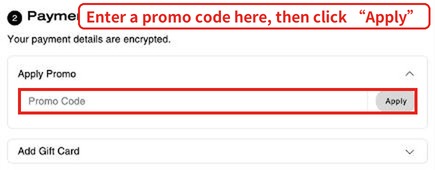
Click “Continue to payment” to move to the payment step. If you have a promo code, enter it under “Apply Promo” and click “Apply”.
Step 6
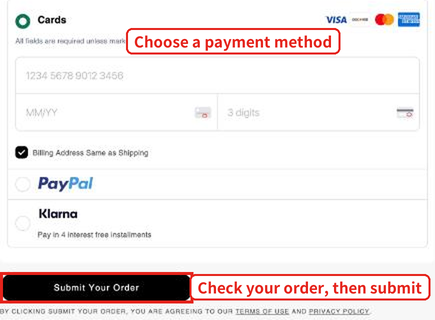
Choose a payment method (Cards, PayPal or Klarna) and enter the details. “Billing Address Same as Shipping” is ticked by default, which means the billing address is the same as the delivery address (the Buy&Ship Canada warehouse).
Once you have checked your order and delivery details, click “Submit Your Order” to place the order.
After your parcel arrives at the Buy&Ship Canada warehouse, log in to your account, declare the parcel and choose to forward it to Malaysia.
Method 2: Coach Outlet Proxy Shopping (4 Steps)
If you would rather not check out yourself, or your international credit card does not go through, you can use Buy&Ship proxy shopping. Our specialists place the order for you, so you can skip Steps 2 to 6 above.

Step 2
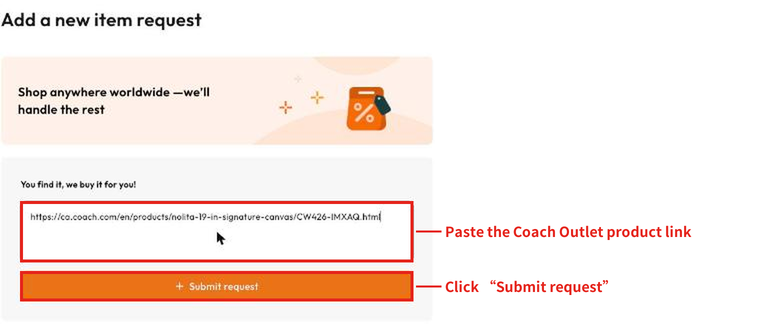
Go to the Coach Outlet Canada site, copy the link of the product page you want, paste it into the box under “You find it, we buy it for you!” and click “Submit request”.
A preview page shows the estimated total cost of your request, including any service fee, before you submit. Shipping the item to Malaysia is charged separately.
Step 3
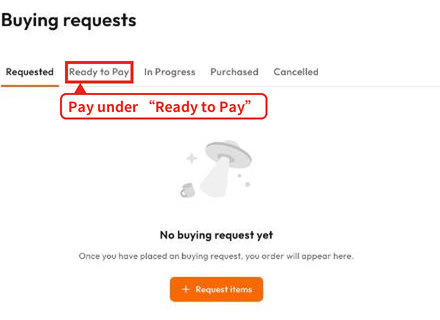
After you submit, wait for our specialist to confirm the request and arrange payment. Pay under the “Ready to Pay” tab on the Buying requests page. Our specialist then places the order and declares the parcel for you.
Step 4
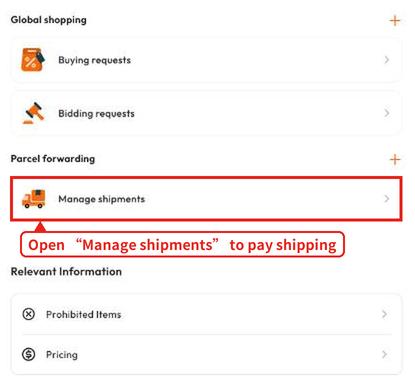
Once the parcel is ready to ship, go to Manage orders in your Member Centre and open “Manage shipments” to combine parcels and pay the shipping fee, then choose how you want to receive it.
For proxy shopping fees, please refer to the proxy shopping page. Please check the prohibited and restricted items page to see whether your item can be bought and shipped.
FAQ
Can I forward items from the Coach Outlet Canada site to Malaysia?
Use the Buy&Ship Canada warehouse as your delivery address at checkout. Once the parcel arrives, declare it and choose forwarding. Please check the prohibited and restricted items page first to see whether your item can be forwarded.
What if I do not want to check out myself?
You can use Buy&Ship proxy shopping. Submit the product link and our specialist will confirm and place the order for you. See Method 2 above.
How is the forwarding fee calculated?
Please refer to the Buy&Ship latest shipping rates page.
Further Reading
- Black Friday 2026 Malaysia Guide | Sale Times & How to Shop US Deals
- Amazon Black Friday 2026: US/EU Sale Dates, Must-Buy Deals and Malaysia Forwarding Guide
- Amazon Japan Black Friday 2026: Sale Dates, Must-Buy Deals and Malaysia Forwarding Tips
- Lululemon Black Friday 2026: US/CA/AU/JP Price Comparison, Sale Picks & Shipping to Malaysia
- Olive Young Black Friday 2026: Starts Nov 1? Korea Site Proxy Shopping Guide for Malaysia + Must-Buys